
If you’ve ever seen “Cannot verify server identity” on your iPhone, you’re not alone. If you receive a “can’t verify server identity” problem on your iPhone, it is a warning that the mail server certificate may not be legitimate. This happens because your device rigorously verifies your mail server’s certificate.
The iPhone encountered an error: “Cannot Verify Server Identity.”
If your iPhone displays this problem, it likely means that the server’s SSL Certificate does not match the one configured on your iPhone. You probably know that nowadays, a secure web connection is established via HTTPS rather than plain old HTTP. SSL guarantees the site’s safety (Secure Socket Layer).
When Typically Does This Go Wrong?
This “Cannot Verify Server Identity image. Gmail” error typically happens when setting up a new account on an iOS device, following an account migration, or when the mail server’s certificate has expired or changed due to a transition in certificate issuers. Common email hosting services also suffer from this problem.
The most common cause of this issue is a discrepancy between the domain name and the server name, even if the certificate is genuine. In addition, Apple’s stringent examination of your mail server certifications suggests a “Bug” in iPhone or iOS.
There are five different solutions to the iPhone mail error. Try them out at the link below
The First Step:
In its most fundamental and straightforward form, this can be accomplished by just restarting your iPhone. When a tiny software issue is to blame for the mistake, this quick patch is often the solution.
Required Procedures:
- To turn off the device, press and hold the side button for a few seconds.
- Slide the power button all the way to the left to turn off the iPhone.
- To restart your phone, wait 30-60 seconds, and then hit and hold the Side button once more.
There is no need to build a backup in this case; repeating the above steps as much as you like will have no effect on the data stored in the phone’s internal memory. Verify if the ‘Cannot Verify Server Identity’ error message still appears after taking these steps.
2. To Fix This, Delete Your Email Account and Then Re-Create It.
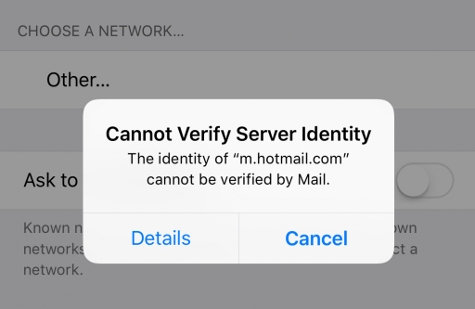
This error message may appear while using Mail on an iOS device such as an iPhone. Follow these steps:
- From the main menu, select Settings.
- Select the Login/Password menu option.
- Then, choose the email account you wish to remove by tapping on its name.
- Select Account Deletion from the Settings menu.
- To confirm that you wish to remove the email account, press Delete from my iPhone.
- Return to the Accounts and Passwords section of Settings after removing the email account.
Select the Add Account link. - Choose your preferred email provider and fill in your account details.
Read More: Restricted Call – how To Block Restricted Calls in Android and I Phone, Apps[1]
3. No Data Lost:
When in the Settings app, go to General > Transfer or Reset iPhone > Reset > Reset All Settings to wipe your iPhone completely clean.
You’ll see a confirmation message at the bottom of your iPhone’s screen.
4. Exit and Relaunch the Email App:
If you find that the email app isn’t responding as expected, closing it and opening it again may help. The app can be terminated in an emergency. In some cases, this can prevent further app crashes from occurring.
If you want to exit the Email app[2], double-tap the Home button to bring up the App Switcher. To completely get rid of the Mail app, swipe up on it in the App Switcher until it disappears.
5. Modify Your Carrier and IOS.
![2022] Real Fixes for “Cannot Verify Server Identity iOS 13” Issue](https://images.imyfone.com/en/images/2018/08/add-email.jpg)
We Have Previously Discussed the Significance of Updating Your Phone and Your Carrier’s Settings. if You Get This Phone Mail Error and Suspect It Is Caused by Os Flaws, Immediately Download and Install the Latest Software Update from Apple’s Website.
- The Settings > Software Update Menu Is Where You May Manually Check for Available I Os Updates.
- In Addition to Upgrading the Most Recent Version of I Os, It Is Advised That You Install the Most
- Recent Version of Your Carrier’s Software, Especially if The Issue Was Caused by A Problem with Your Network.
- Access the Carrier Section of The About Menu by Going to Settings > General > About.
Then, Just Stick to The On-Screen Prompts to Get the Most Recent I Os Updates on Your Phone.
Read More: How to Remove Viruses on Iphone: Tips for Removing I Phone Viruses[3]
Closing Remarks:
The Next Time Your Phone Displays the Message “cannot Verify Server Identity,” You’ll Be Prepared.
References
- ^ Restricted Call – how To Block Restricted Calls in Android and I Phone, Apps (www.vivaraenews.com)
- ^ Email app (play.google.com)
- ^ How to Remove Viruses on Iphone: Tips for Removing I Phone Viruses (www.vivaraenews.com)